 Kalim DLR
How to download
Seven easy steps, with pictures. You only need the video link.
- 1
Open the app and go to the Facebook page
Open Kalim DLR. The first page you see is the Facebook page.
Tap the menu button (☰) at the top left to open the side menu. It has Facebook, History (with Videos · MP4 and Music · MP3 inside), Tutorial and About.
This is where you paste your link. The big green button at the bottom says "Download from Facebook".
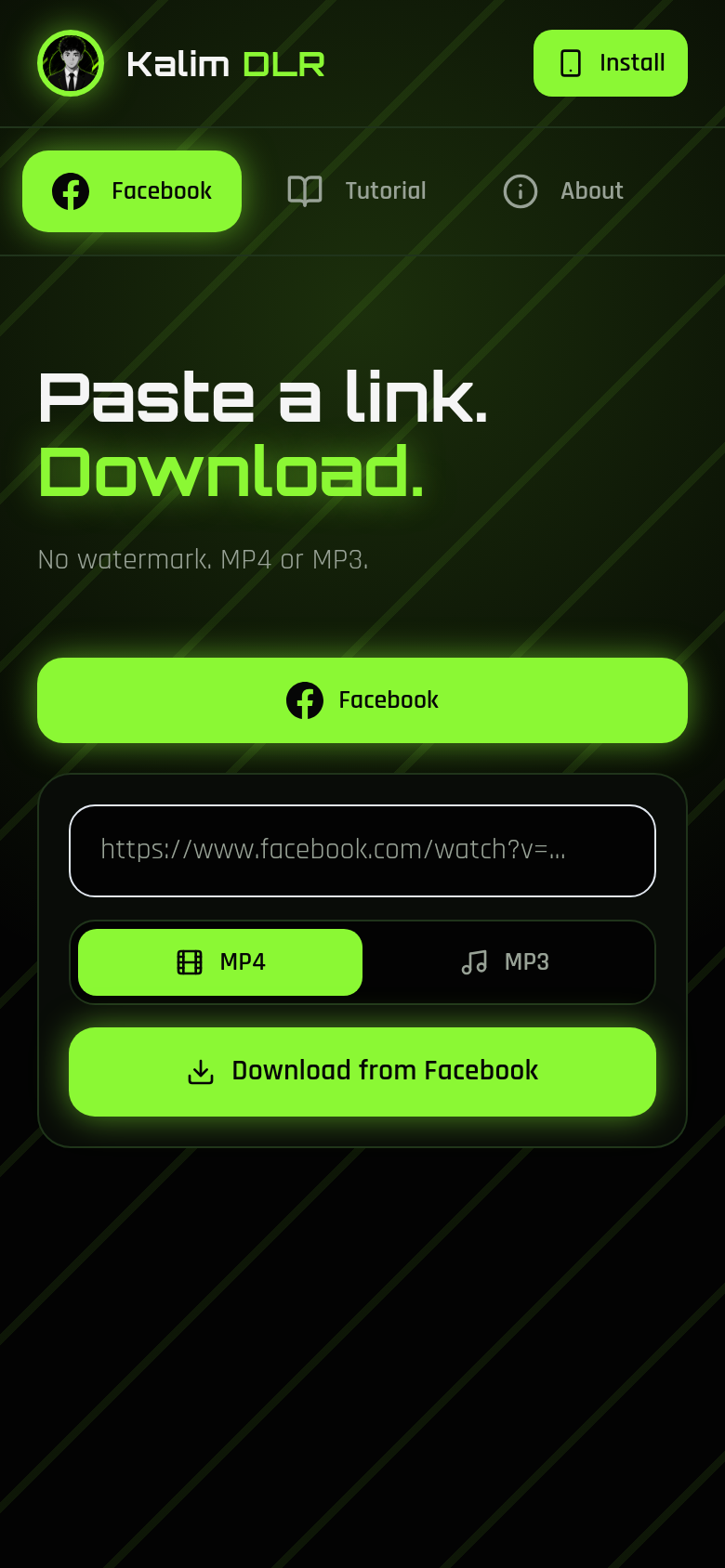
The Facebook page. This is where everything starts. - 2
Copy the video link from Facebook
Open the Facebook app or facebook.com in your browser and find the video you want.
Tap the Share button under the video, then choose Copy link (on some phones it is called Copy video link or Copy address).
If you are on a computer, click the video and copy the web address from the top of the browser instead.
The link you need looks like https://www.facebook.com/watch?v=... or https://www.facebook.com/.../videos/...
- 3
Paste the link into the box
Come back to Kalim DLR and tap the empty box that shows https://www.facebook.com/watch?v=...
Hold your finger on the box and choose Paste, or type the link yourself.
The whole link must be inside the box — do not cut the beginning or the end of it.
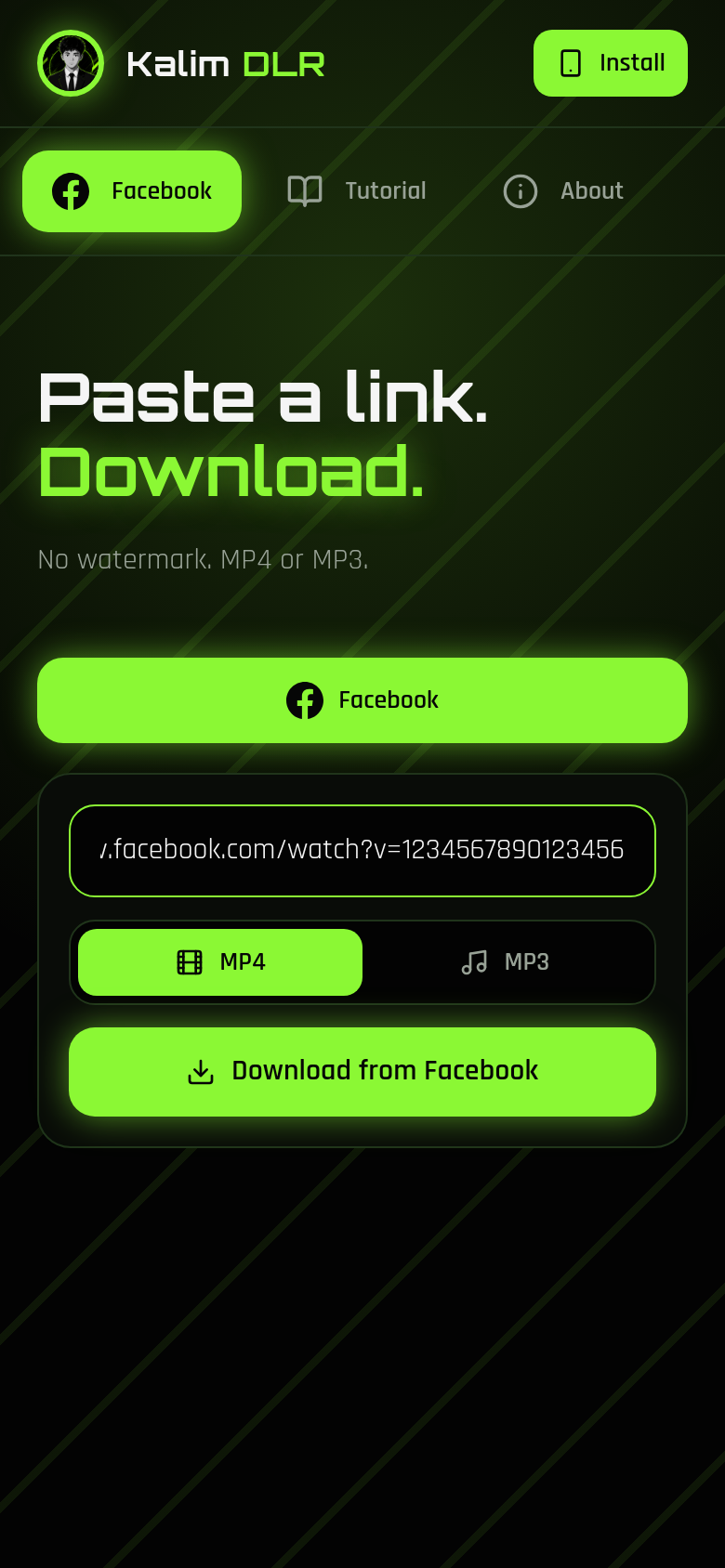
The link is pasted into the box. The button is ready. - 4
Choose MP4 or MP3
MP4 = the video with picture and sound. Choose this if you want to watch it.
MP3 = sound only, no picture. Choose this if you only want the audio, like a song or a podcast.
Tap the button you want. The one you picked turns bright green; the other one stays black.
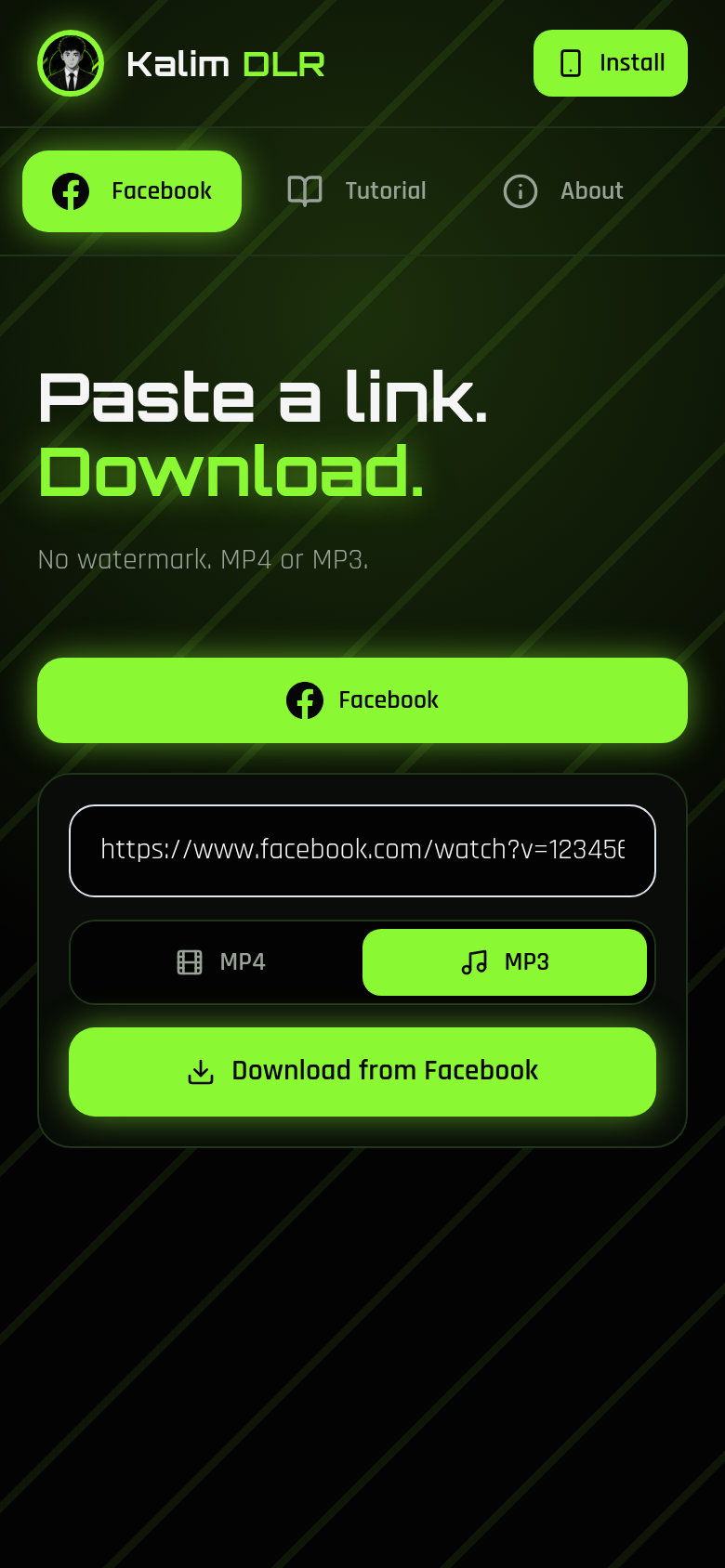
MP3 is picked here (bright green). Tap MP4 instead if you want the video. - 5
Tap Download from Facebook
Tap the big green button. The app fetches the video — this can take a few seconds.
When it is done, a video preview appears on the page with a title under it.
Under the preview you will see the download button: Download MP4 or Download MP3, depending on what you picked.
- 6
Tap Download MP4 or Download MP3, then find your file
Tap the download button. The app saves the file inside the app for offline playback, and also saves a copy to your phone.
You need internet only to fetch and download. Playing saved files works offline.
On an Android phone, open the Files app and look in the Downloads folder.
On an iPhone, open the Files app and look in Downloads, or check your browser's download list.
On a computer, the file goes to your usual Downloads folder.
- 7
Play your saved files in History
Open the menu (☰) and tap History. It opens a small list with Videos · MP4 and Music · MP3.
Videos · MP4 shows your videos like a photo album. Tap one to watch it.
Music · MP3 shows your songs as a playlist. Tap one to open the music player with play, pause, next, previous, shuffle, repeat and 10-second skip.
To remove a file, tap the trash button. The app asks you to confirm before deleting.
If something goes wrong
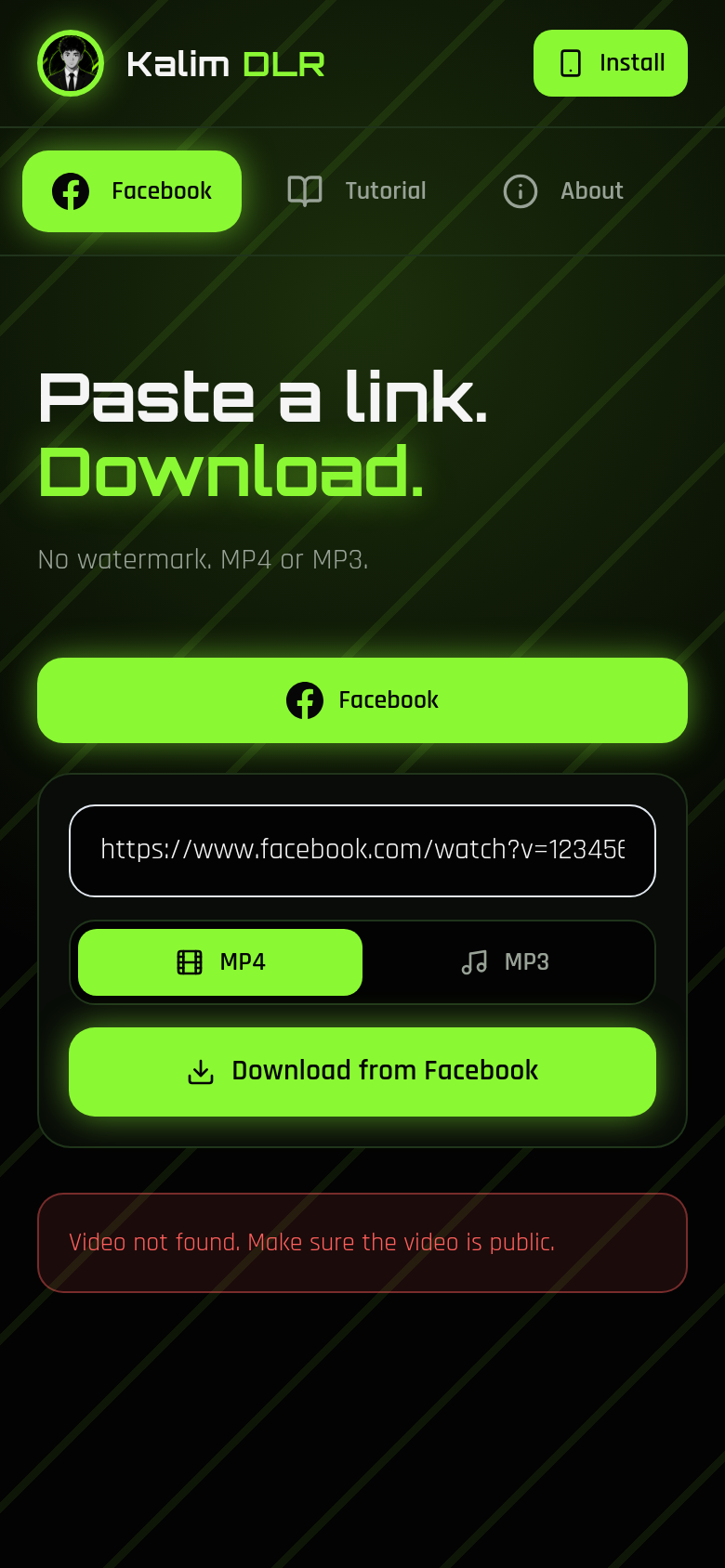
"Facebook didn't share this video with us."
The video is private, deleted, or the link is incomplete. Open the video in your browser first — if you cannot watch it there, the app cannot fetch it either. Copy the link again from the Share button and try once more.
Nothing happens when I tap download
Your browser may be blocking the download. Look for a small message at the top of the browser asking for permission to download, and choose Allow or Keep.
The MP3 file will not play
The audio is saved with an .mp3 name but is not re-encoded, so a few players refuse it. Most phones still play it. If yours does not, use MP4 instead.
I want the app on my home screen
Tap the Install button at the top of the app. If your browser does not show that button, tap the browser's Share or menu button and choose Add to Home Screen.